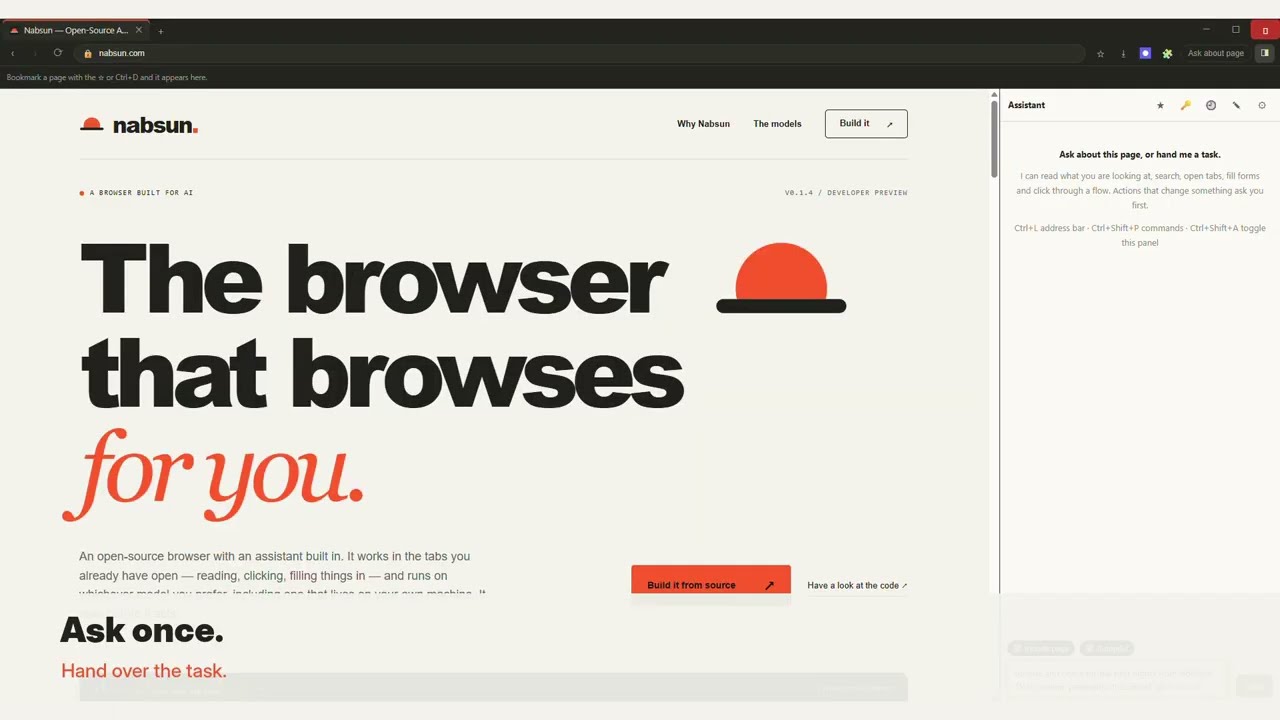
A BROWSER BUILT FOR AIV0.1.5 / DEVELOPER PREVIEW

The browser
that browses
for you.

An open-source browser with an assistant built in. It works in the tabs you already have open — reading, clicking, filling things in — and runs on whichever model you prefer, including one that lives on your own machine. It asks before it acts by default.

Download for Windows Or build it from source
✳   Your next big ideaINTERACTIVE CONCEPT
◇   nabsun://your-workspace
YOUR WORK STARTS HERE.

A little less
busywork.
A lot more flow.

It reads the page,
connects the dots,
and keeps things moving.

✳   Nabsun assistant● LOCAL

What are the key ideas on this page?

WORKING WITH YOUR TABS

Here’s the short version, with the parts that actually matter pulled out for you.

Read page → extract key ideas
Ask a question, or hand over a task

A sample workflow · this illustration doesn’t run a real model.

WINDOWS · 1.3 GB, MODEL INCLUDED · UNSIGNED BUILDSCROLL TO EXPLORE ↓
RUNS ON YOUR MACHINEBRING YOUR OWN MODELOPEN SOURCEYOU STAY IN CHARGE
YOUR EVERYDAY BROWSER, TOO.
Encrypted passwords ↗Bookmarks & favourites ↗Downloads & session restore ↗Familiar tab controls ↗Extensions & plugins ↗
THE REAL THING

Watch Nabsun
in action.

See the browser and its built-in assistant at work.

Video hosted on YouTube. Watch on YouTube ↗

01 / BUILT DIFFERENT

A browser with
a job to do.

Most of your work already happens in a browser. Nabsun lets an assistant help with it — in the same tabs, behind the same logins, while you watch it happen.

01 / ON YOUR MACHINE

Big on local.
Light on setup.

A small model ships inside the app and runs on your own CPU, so there’s nothing to sign up for and nothing to pay for. It keeps working with no internet connection at all, and you can point it at something larger whenever you like.

02 / IN THE LOOP
Requested actionClick “Continue”
Ask for approval ↗Write action

Let AI help.
Stay in control.

By default, the assistant asks before clicking, typing, navigating, or running page code. You can approve a single action, allow a tool for future calls, or enable Autopilot for routine actions. Browser tools use the same approval settings from the sidebar and connected editors.

03 / CONNECT YOUR TOOLS

From your editor.
Into your tabs.

Nabsun is an MCP server too, so Claude Code or Codex in your editor can work in the browser you’re already signed into. Same tools, same approval prompts, whichever side the request comes from.

04 / IT KNOWS WHO YOU ARE
soul.mdStays on your machine
Local models only ↗Your file

Tell it once.
Not every time.

Keep a plain Markdown file — soul.md — with your name, your time zone, how you like answers. The assistant reads it so you stop reintroducing yourself. By default it is shared only with models running on your own machine; cloud providers are given none of it.

02 / FROM QUESTION TO ACTION

Ask once.
Watch it work.

Ask about what you’re reading, pull details together from a handful of tabs — or hand over the whole errand and watch it click through the pages, fill in the fields, and come back with the result.

Try the sample workflows ↗
01

Start with a question.

Open the sidebar and ask about whatever you’re reading. The page comes along as context, so there’s nothing to paste in.

02

Hand over the whole errand.

It finds the right elements and gets on with it — clicking through pages, typing into fields, picking from dropdowns, ticking boxes, moving between tabs — then re-reads what came back and carries on. The same loop you’d run yourself, without the tab juggling.

03

Stay in charge throughout.

Actions ask for approval by default. You can also allow individual tools or switch on Autopilot for the session. When it needs your input, such as which result you meant or what belongs in a field, it can ask in the sidebar. Its form tools block recognized password, payment-card, and one-time-code fields.

03 / CHOOSE YOUR MODEL

No model
lock-in.

Start with the model that comes in the box, or connect the one you already use. Switching is a couple of clicks, so you can pick whatever suits the task in front of you.

CLOUD PROVIDERS

Anthropic + OpenAI

Add an API key and pick any model your account can reach — the field is free text, so newer ids work too.

YOUR PROVIDER
YOUR LOCAL STACK

Ollama

Already running models locally? Point Nabsun at your server and carry on using them.

YOUR HARDWARE
YOUR EXISTING TOOLS

Claude Code + Codex

Add either CLI from the Extensions panel and Nabsun runs it for you, using the login it already has. No key is kept here.

YOUR WORKFLOW

The built-in model is happiest with everyday questions and getting around the web. For long, multi-step research, it’s worth switching to something larger.

04 / MAKE IT YOURS

It’s all here.
Take it apart.
Make it yours.

Chromium and Electron underneath, MIT licensed on top.
Clone it, read it, and change whatever you’d rather have work differently.

Get the source Download the installer instead
QUICK START / FROM SOURCE
git clone https://github.com/naveenalavilli/nabsun.git
cd nabsun
npm install
npm run setup
npm run fetch:model
npm run build
npm start
Open the assistant with Ctrl + Shift + A

The model is about 1.2 GB to fetch, and packaged builds already include it, so an installed copy downloads nothing — which is why the installer is around 1.3 GB. Builds are not code-signed yet, so Windows SmartScreen will warn: choose More info → Run anyway, after checking your download against the SHA256SUMS.txt published with it.

DEVELOPER PREVIEW

Try it today.
Help shape what’s next.

It’s early and it’s moving quickly, so expect a few rough edges. Do have a read of the security notes before you sign it into accounts you care about.

Current limitations
  • Builds aren’t code-signed yet, and there’s no auto-update.
  • One window at a time. Check the release assets for available platforms and architectures.
  • Chrome extensions load unpacked from a folder — there’s no Web Store flow, and not every chrome.* API is implemented.
  • No tab groups, split view, profiles, sync, or private windows.
  • Autofill covers passwords only — not addresses or payment details.
  • No bookmark import yet, and tracker blocking is a short built-in list rather than a full filter engine.
COMMON QUESTIONS

Get to know
Nabsun.

What it is, which models it works with, and what you’ll need to get going.

What is Nabsun?

It’s an open-source browser built with Chromium and Electron, with an assistant that can read pages, compare things across tabs, and use the browser’s own tools to get a task done. The rest of the time it’s an ordinary browser — bookmarks, saved passwords, downloads, session restore, all where you’d expect them.

Can Nabsun run AI models offline?

Yes — the built-in Qwen3 model runs on your CPU, with no key and nothing leaving the machine. An installed copy already has it; if you build from source, you fetch the engine and weights once. Browsing the actual web, of course, still needs a network.

How does Nabsun use MCP?

It works both ways. Nabsun runs an MCP server, so an agent in your editor — Claude Code, Codex, or anything else that speaks MCP — can drive your real, signed-in tabs. It also hosts MCP servers of its own, whose tools join the same list the sidebar uses. Either way the tools and the approval prompts are the same, and the bridge listens only on loopback, with a token that changes every launch.

Do AI agents need approval before taking actions?

By default, yes. Reading a page is automatic; clicking, typing, navigating, and running code ask for approval. You can allow individual tools for future calls. Autopilot waves through clicks, typing, and navigation for the session if you’d rather work uninterrupted. It deliberately stops short of running code on a page — that sits behind its own setting, off by default. The form tools block recognized credential fields. Arbitrary page code has broader access, so only enable it when you trust the task and the page. The assistant is instructed to respect a denial.

Which AI providers can I use?

The built-in model, your own Ollama server, an Anthropic or OpenAI key, or the Claude Code and Codex CLIs you’ve already signed into — those keep their own credentials, so nothing is stored in the browser. Worth remembering that a cloud provider sees whatever context you send it, and will bill you for it.

Does it remember anything about me?

Only what you write down yourself. There is a Markdown file in your profile folder called soul.md — your name, your time zone, how much detail you want, anything you would otherwise retype every session. Settings shows you exactly where it lives and opens it in your editor. It is yours: nothing rewrites it, and a line you delete stays deleted. By default it is only ever given to a model running on your own machine, so Anthropic, OpenAI and the signed-in CLIs never receive it unless you switch that off. Settings names the provider you are using and says whether the file is being shared or withheld.

How do I install it?

Download the Windows installer from the releases page — there is a setup version that adds a Start-menu entry, and a portable single executable that runs without installing. Both already contain the built-in model, so they work offline straight away, and both are around 1.3 GB for that reason. They are not code-signed yet, so Windows will show a SmartScreen warning: choose More info → Run anyway. Checksums are published alongside, and you can verify one with Get-FileHash <file> -Algorithm SHA256. For macOS and Linux, check the published release assets for your architecture or follow the source build instructions below.

Can I extend it?

Three ways. Drop a folder of JavaScript into the plugins directory and the tools you register show up to the model like the built-in ones. Add an MCP server and its tools join the same list. Or load an unpacked Chrome extension — content scripts, storage, and much of the tabs and webRequest APIs work on the same Chromium engine.